PASSCODE
APPLE - PassCode Backup/Restore
PassCode Backup and Restore for Apple devices using Ramdisk method.
PASSCODE BACKUP / RESTORE
- PASSCODE BACKUP / RESTORE
How to Backup and Restore PassCode on Apple devices ?
Created: 2026-08-17 14:45:00
Warning
Device must be in DFU mode before starting.
Step 1 — Pwn/Exploit
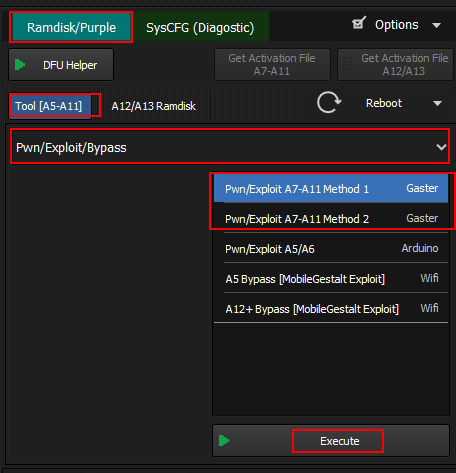
- Open Hydra Tool
- Open Apple Module
- Go to Options tab
- Select Pwn/Exploit method based on your device:
- Gaster — A12/A13 devices
- Pwn/Exploit A7-A11 Method 1 — A7 to A11
- Pwn/Exploit A7-A11 Method 2 — Alternative for A7-A11
- Pwn/Exploit A5/A6 — A5 and A6 devices
- Click Execute
Step 2 — Start Ramdisk
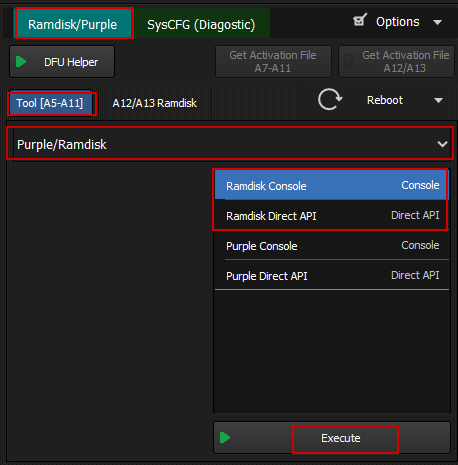
- Switch to Ramdisk/Purple tab
- Select Ramdisk Console
- Click Execute
- Wait until status shows Ramdisk Running
Step 3 — Mount
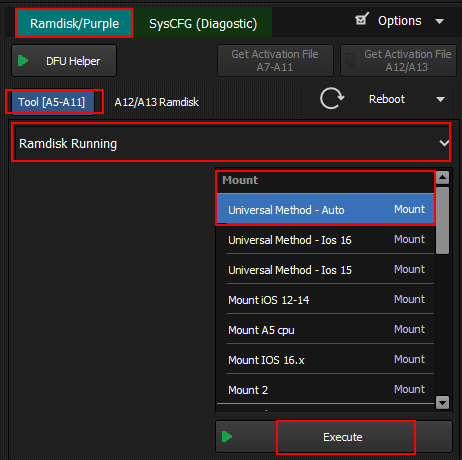
- Select Mount method based on your iOS version:
- Universal Method - Auto — Auto detect (recommended)
- Universal Method - iOS 16 — iOS 16.x
- Universal Method - iOS 15 — iOS 15.x
- Mount iOS 12-14 — iOS 12 to 14
- Mount A5 CPU — A5 chip devices
- Click Execute
Step 4 — PassCode Operations
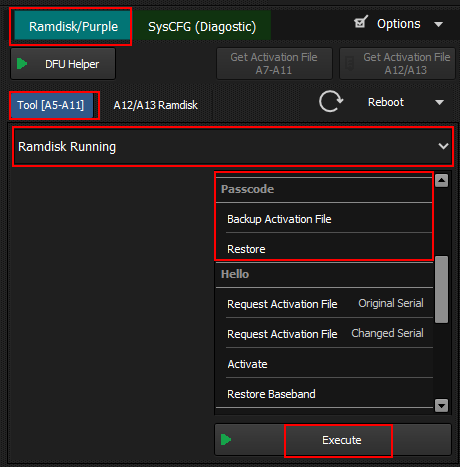
- Select Passcode section
- Choose operation:
- Backup Activation File — Save current passcode data
- Restore — Restore passcode data
- Select Hello section
- Choose Original Serial or Changed Serial
- Click Request Activation File
- Click Activate
- Click Restore Baseband
- Click Execute
- Wait for process to complete
Navigate back to Apple devices or All supported devices